If you are a Linux administrator or developer, knowing how to install and manage kernels is a crucial skill. The kernel is the heart of the operating system, responsible for managing hardware, processes, and system calls. Updating to a newer kernel can provide better hardware support, improved security, and performance enhancements.
In this guide, we will walk through how to check the current kernel version, install a new kernel, and set the default kernel step-by-step. We’ll also look at practical examples on both Red Hat-based distributions (RHEL, CentOS, Fedora) and Debian-based distributions (Ubuntu, Mint).
Step 1: Check the Currently Installed Kernel
Before installing a new kernel, you should know which kernel you are currently using.
On Red Hat / CentOS / Fedora
Use the yum list installed kernel or dnf list installed kernel command:
This lists all kernels installed on your system.
Next, check which kernel is currently running:
This tells us that the system is currently running kernel 5.14.0-284.30.1.el9_2.
Understanding the Kernel Version
Here’s a quick breakdown of the version:
5 → major version
14 → minor version
0 → revision
el9_2 → RHEL 9.2 specific release
x86_64 → architecture (64-bit)
This helps in troubleshooting and ensuring compatibility with software packages.
Step 2: Check for Available Kernel Updates
Before installing a new kernel, check if there’s a newer version available.
On Red Hat-based Systems
Use yum check-update or dnf check-update:
On Debian-based Systems
Run:
This will check for available package updates, including the kernel.
💡 Practical Example:
If you’re running a server that requires a security patch, updating the kernel ensures you’re protected against vulnerabilities like Spectre or Meltdown.
Step 3: Install the New Kernel
Once you’ve confirmed a newer kernel is available, you can install it.
On Red Hat / CentOS / Fedora
Use:
or
This installs the latest available kernel but does not remove older kernels. Keeping multiple kernels installed is a good practice, as it allows you to boot into an older one if something goes wrong.
Manual Kernel Installation
If you cannot use dnf or yum, you can manually download a kernel from:
🔗 https://www.kernel.org/pub/linux/kernel/
After downloading, install it using rpm or dpkg (for Debian systems).
Step 4: Verify GRUB Configuration
After installing a new kernel, your system bootloader (GRUB) is usually updated automatically. You can check which kernel GRUB will boot by default.
You can also check the default index:
And the default title:
Step 5: Changing the Default Kernel
If you want to boot into a different kernel, you can change the default kernel with grubby:
Or using the index:
If grubby is not available, you can use grub2-set-default:
This will make the selected kernel the default one on the next boot.
Step 6: Locate and Modify GRUB Configuration (If Needed)
You can check your GRUB configuration file:
Locate grub.cfg (usually in /boot/grub2/grub.cfg):
List available kernels in grub.cfg:
You can select the right kernel manually if needed.
Step 7: Reboot and Verify
Finally, reboot your system:
After the reboot, run uname -r again to confirm the new kernel is active.
Real-World Example: Why Kernel Updates Matter
Imagine you are managing a production web server running on CentOS 8. A new kernel update is released that improves performance and patches a critical vulnerability.
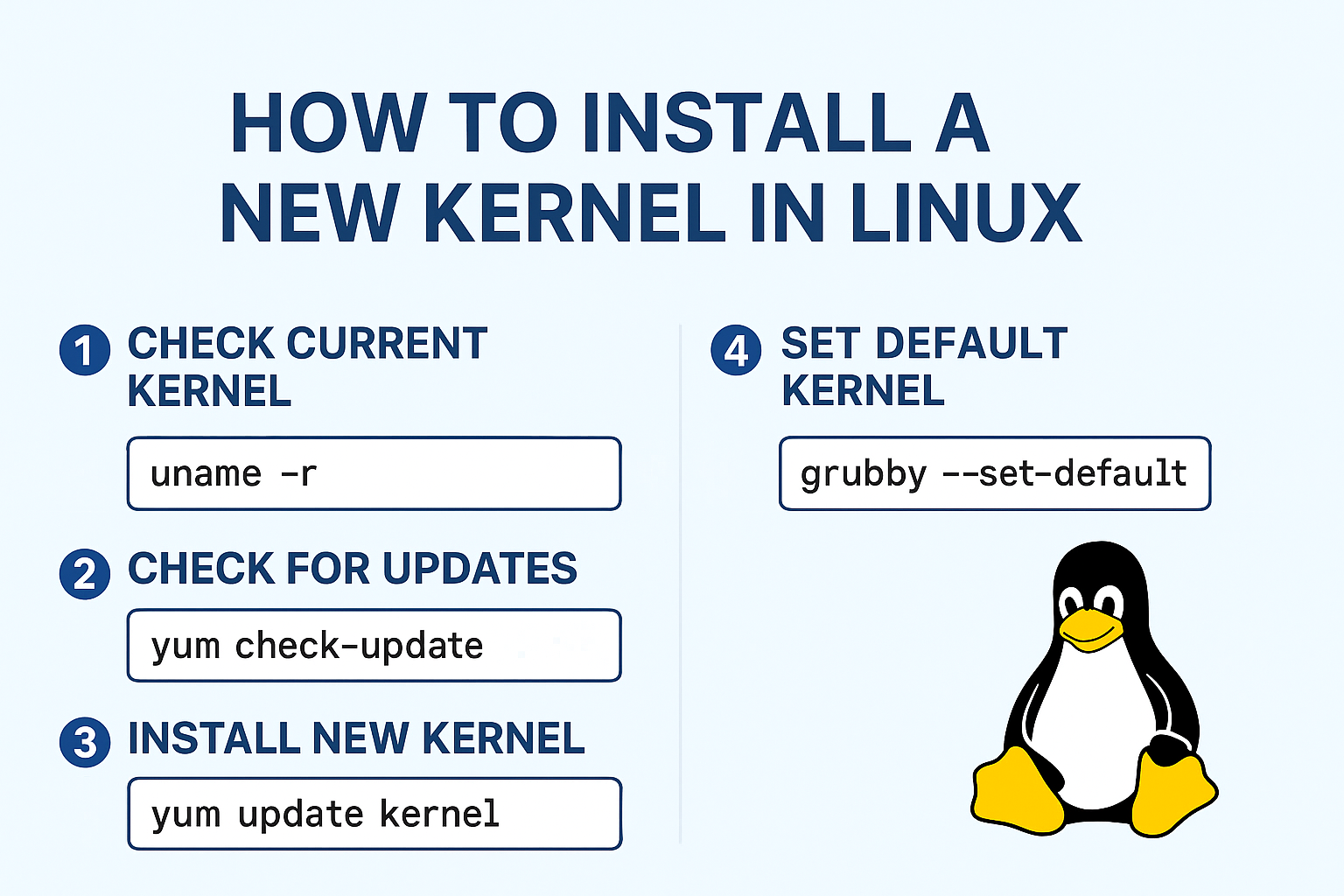
You first check the currently installed kernel with
uname -r.Then run
yum check-updateto confirm a new kernel is available.You install it using
yum update kernel.Finally, you reboot the system during a maintenance window to minimize downtime.
This process keeps your infrastructure secure and up to date.
Best Practices for Kernel Management
Always test in staging first: Ensure compatibility with applications before updating in production.
Keep at least one older kernel: This gives you a fallback option if the new kernel fails.
Automate with configuration management: Tools like Ansible or Puppet can help manage kernel updates across multiple servers.
Monitor kernel release notes: New kernels may deprecate features or introduce breaking changes.
Conclusion
Installing and managing kernels in Linux is not as intimidating as it sounds. With just a few commands (yum, dnf, apt-get, grubby, grub2-set-default), you can stay up to date with the latest kernel versions and keep your system running smoothly and securely.
By regularly checking your current kernel, updating when necessary, and verifying GRUB configurations, you can avoid common pitfalls and ensure minimal downtime.