If you are a Linux user, especially on Debian-based systems like Ubuntu, you’ve probably come across .deb files. These packages are the core way software is installed and managed on Debian and its many derivatives.
In this guide, we’ll break down everything you need to know about DEB packages — what they are, how to install them, how to create your own .deb file, and common tools to manage them. We’ll also provide real examples to make things crystal clear.
Let’s dive in!
What is a DEB Package?
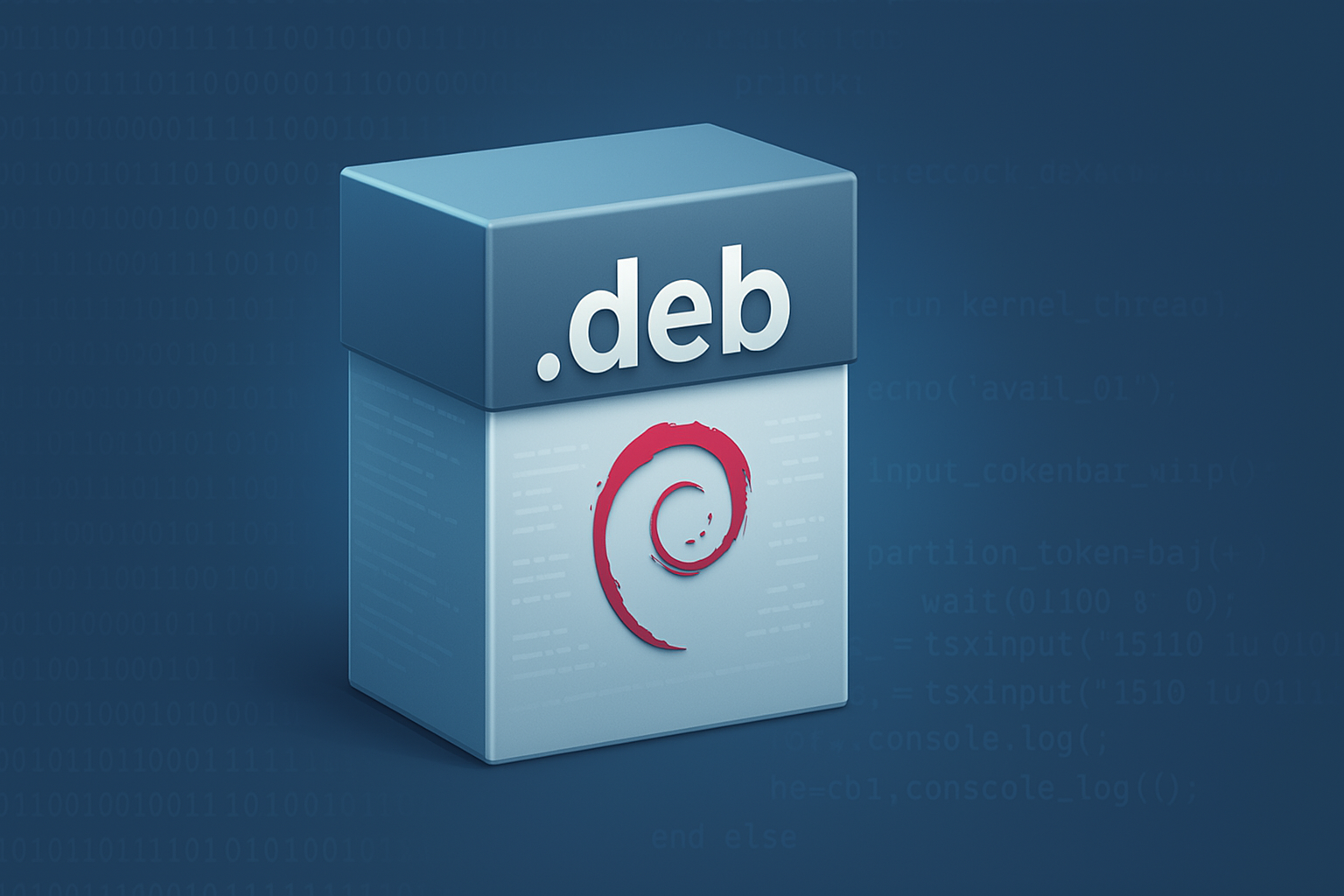
A DEB package is a standard software package format used by Debian and Debian-based distributions (like Ubuntu, Linux Mint, and Pop!_OS). Think of it like a .exe installer on Windows or a .dmg file on macOS.
Inside a .deb file, you’ll find:
Program files (binaries, libraries, assets)
Metadata (version, dependencies, author information)
Scripts (optional pre/post install or removal scripts)
In short, a DEB package bundles everything an app needs so it can be easily installed and managed by the system.
Why Are DEB Packages Important?
Using DEB packages comes with major benefits:
Ease of installation: One command or double-click installs an entire app.
Dependency management: DEB files ensure required libraries are also installed.
System-wide integration: Installed software fits naturally into the Linux file system.
Easy updates and removal: Package managers like
apthandle updates smoothly.
Whether you’re a developer distributing an app or a user installing your favorite tools, DEB packages make life simpler.
How to Install a DEB Package
There are a few ways to install .deb files. Let’s look at the most common methods:
1. Using dpkg
The dpkg tool is the low-level package installer for DEB files.
sudo dpkg -i package-name.deb
If you encounter missing dependencies, fix them with:
sudo apt-get install -f
2. Using apt
Since dpkg doesn’t automatically resolve dependencies, it’s better to use apt when possible:
sudo apt install ./package-name.deb
(Note the ./ before the file name — it tells apt you’re installing a local file.)
3. Using Gdebi (GUI)
If you prefer a graphical tool, Gdebi is a lightweight DEB installer that handles dependencies automatically.
First, install Gdebi:
sudo apt install gdebi
Then open your .deb file with Gdebi and click Install Package.
How to Create a DEB Package (Simple Example)
Creating your own .deb file might sound scary, but it’s actually pretty fun!
Here’s a super basic example: let’s package a simple shell script.
Step 1: Create a Working Directory
					mkdir my-package
cd my-package
mkdir -p DEBIAN usr/local/bin
Step 2: Add Your Script
Save your shell script inside usr/local/bin/.
Example script (hello.sh):
					#!/bin/bash
echo "Hello, world!"
Make it executable:
chmod +x usr/local/bin/hello.sh
Step 3: Create the Control File
Inside the DEBIAN directory, create a control file:
nano DEBIAN/control
Content:
					Package: hello-world
Version: 1.0
Section: base
Priority: optional
Architecture: all
Depends: bash
Maintainer: Your Name <your@email.com>
Description: A simple Hello World script packaged as a DEB file.
Step 4: Build the DEB Package
From inside the parent directory (my-package):
dpkg-deb --build my-package
This will create my-package.deb — your very own DEB file!
Now you can install it like any other .deb:
sudo dpkg -i my-package.deb
Common Tools to Work with DEB Packages
Here’s a quick overview of tools you’ll often use when dealing with .deb files:
| Tool | Purpose | Example Command |
|---|---|---|
dpkg | Install, remove, and inspect DEB files | dpkg -i package.deb |
apt | Higher-level tool that handles dependencies | apt install ./package.deb |
gdebi | Graphical DEB installer | Open .deb file with Gdebi |
ar | Extract DEB archives | ar x package.deb |
dpkg-deb | Build or inspect DEB files | dpkg-deb --build mydir |
lintian | Check DEB packages for errors | lintian package.deb |
These tools give you full control over installing, building, and managing packages.
Common Errors and Troubleshooting
While working with .deb files, you might run into a few common issues. Here’s how to fix them:
“dpkg: dependency problems prevent configuration”
→ Runsudo apt-get install -fto fix broken dependencies.“package architecture (amd64) does not match system (arm64)”
→ Make sure you’re using the right package architecture for your system.“Permission denied”
→ Always usesudowhen installing packages to ensure you have the right permissions.
Conclusion
DEB packages are a powerful part of the Linux ecosystem. Whether you’re installing your favorite software or creating your own app for the world, understanding .deb files gives you a serious edge.
Now you know how to install, create, and manage DEB packages like a pro. Start building and sharing your software today — and enjoy how easy Linux makes it with this simple, elegant format!